
Do you need to add custom styles or functionality to your WordPress child theme? One of the most efficient and professional ways to do this is by loading your own CSS and JavaScript files through the functions.php file.
In this tutorial, I’ll show you how to do it step by step. Whether you’re just getting started with web development or simply want to keep your notes handy (like me xd), this guide will be useful.
Step 1: Create your CSS and JavaScript folder
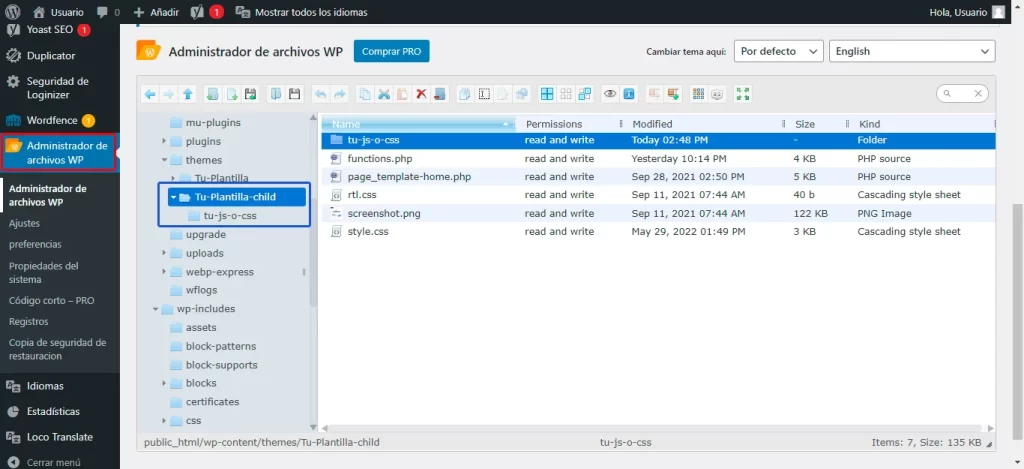
First, open your child theme and create a folder for your files. You can name it something like: tu-js-o-css.
Inside that folder, create:
- A stylesheet: Ejemplo.css
- A JavaScript file: Ejemplo.js
You can do this from your hosting control panel or by using the WP File Manager plugin, which makes the process much easier directly from the WordPress dashboard.
Step 2: Add your code to functions.php
Once your files are ready, go to the theme editor (Appearance > Theme File Editor) and open the functions.php file of your child theme.
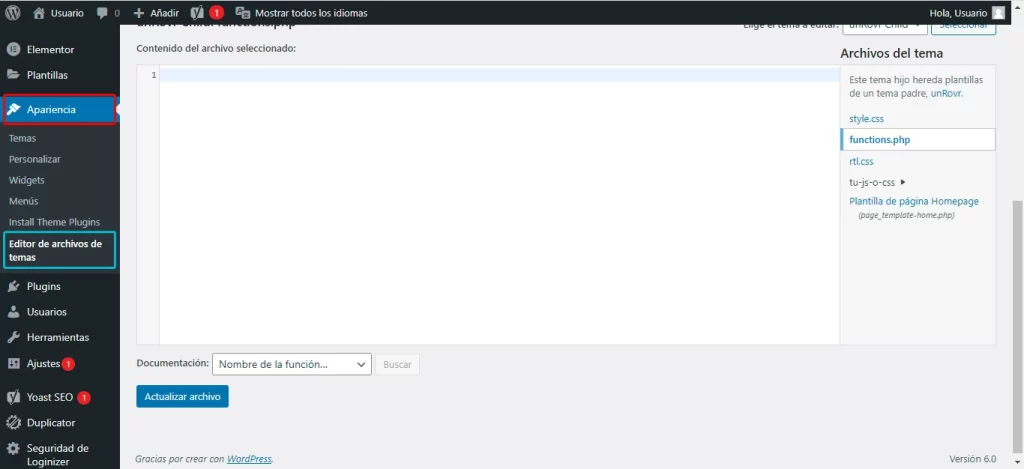
Add the following code:
/* Load CSS and JS in the child theme */
function ejemplo_scripts() {
	wp_register_style('ejemplo-style-css', get_stylesheet_directory_uri().'/tu-js-o-css/Ejemplo.css', '', '1.0','all');
	wp_register_script('ejemplo-script-js', get_stylesheet_directory_uri().'/tu-js-o-css/Ejemplo.js','','1.0', false);

	wp_enqueue_style('Ejecutar-CSS', get_stylesheet_directory_uri(), array('ejemplo-style-css'), '1.0');
	wp_enqueue_script('Ejecutar-JS', get_stylesheet_directory_uri(), array('ejemplo-script-js'), '1.0', false);
}

add_action('wp_enqueue_scripts', 'ejemplo_scripts');
In the File Manager, look for the wp-content folder and then open the themes folder. This is where your theme and child theme are located.
📌 Useful notes to avoid getting lost
Don’t worry about the colors used in the names if you’re copying the code from an editor with syntax highlighting. Just make sure you use the same name when registering your scripts and styles and later when enqueuing them.
First, wp_register_style() and wp_register_script() are used to register the files.
Then, they are loaded using wp_enqueue_style() and wp_enqueue_script().
The add_action() function with the wp_enqueue_scripts() hook ensures that they are executed at the appropriate time.
- wp_register_style(): Registers stylesheets.
- wp_register_script(): Registers JavaScript files.
- wp_enqueue_style(): Loads CSS on the website.
- wp_enqueue_script(): Loads JavaScript on the website.
- get_stylesheet_directory_uri(): Returns the URL of the child theme.
For more information, see the WordPress documentation.
Step 3: Verify that the code works
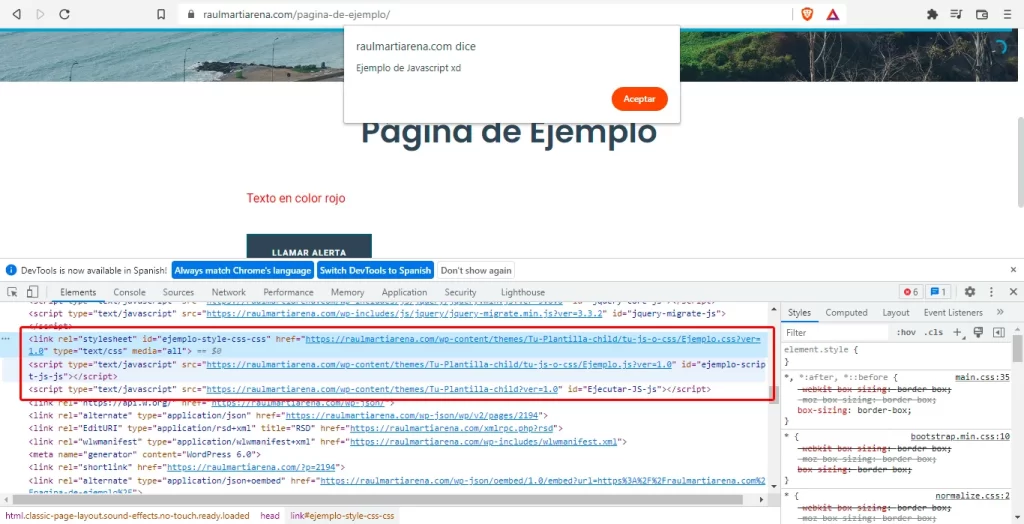
Create a new page in WordPress and use the classes or scripts you added. Then open your browser’s developer tools and check that Ejemplo.css and Ejemplo.js are loading correctly.
And that’s it!
Adding custom CSS and JavaScript through your WordPress child theme is a professional practice that gives you greater control over your site’s design and functionality. It also keeps your code organized and prevents you from modifying or overwriting files in the parent theme.
